




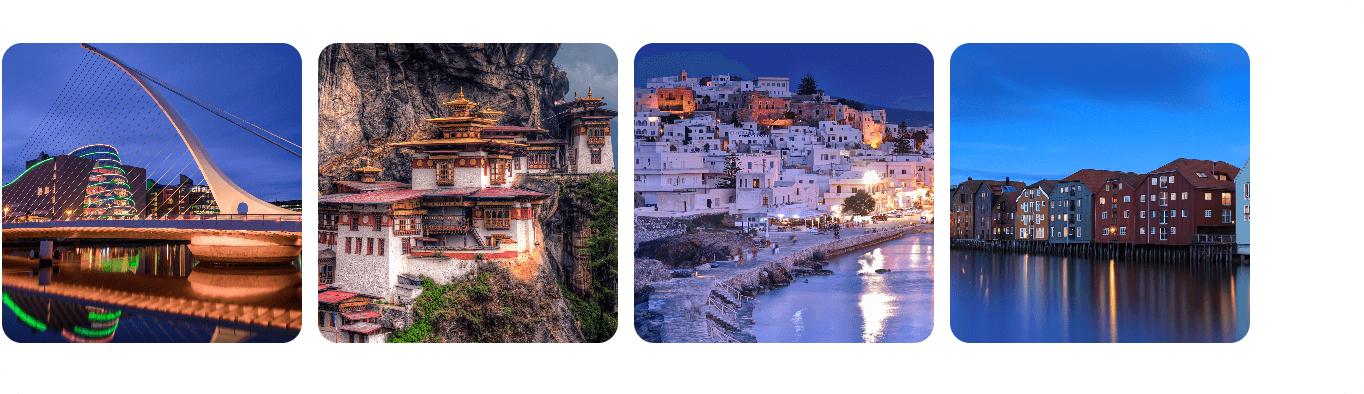
Obsidian Image Cluster helps you easily combine multiple images together in your notes, making your note interface more beautiful and organized.
⬇️ Installation
From Community Plugins (Recommended)
You can install the plugin directly from Obsidian's Community Plugins browser:
- Open Obsidian and go to Settings > Community plugins
- Click on Browse and search for "Image Cluster"
- Click Install and then Enable the plugin
You can also install the plugin directly from its Community Plugins entry: Image Cluster on Obsidian.
Manual Installation
- Download the latest release from GitHub Releases
- Extract main.js, manifest.json, and styles.css to your vault's
.obsidian/plugins/image-cluster/directory - Reload Obsidian and enable the plugin in Settings → Community plugins
✅ How to Use
- Right‑click on an image link and choose “Wrap the images into a group”.

- In Reading mode, click the “Settings” button at the top‑right corner of an image group to customize its style.

⚙️ Configuration
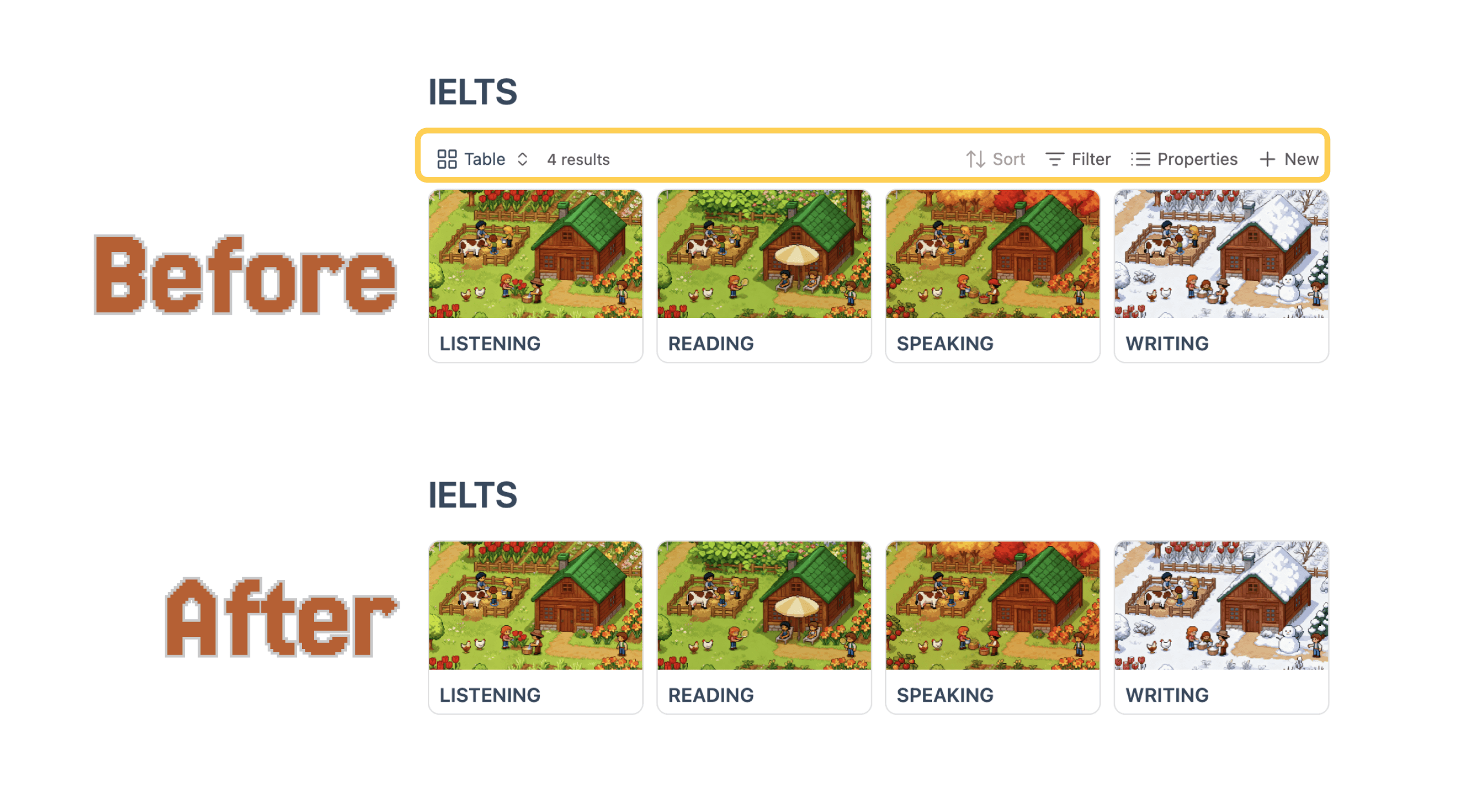
The style configuration of an image group is stored in the first line of the imgs code block and ends with ;;.
You can manually tweak the parameters there for deeper customization.
```imgs
size=150&gap=8&radius=10&shadow=false&border=false;;


```
Optional parameters
| Option | Description | Default | Available options |
|---|---|---|---|
| size | Image width and height in px |
150 | 50~500 |
| radius | Border radius in px |
10 | 0~50 |
| gap | Space between images in px |
8 | 0~50 |
| shadow | Show drop shadow or not | false | false / true |
| border | Show border around images | false | false / true |
| hidden | hidden images | false | false / true |